
How to Dictate Blog Posts with Google Docs
I am a fast typist, so I’ve always typed my blog posts. But sometimes, my typing lags behind all the words floating around in my noggin, and I need to speak my mind.
I checked out Google Docs voice typing tool and love it. This feature works only in the Chrome browser, only on the desktop version of Chrome, and only with Google Docs – not on other file types.
But still… it’s free and easy, and who can argue with that?
 How to use voice typing
Launch or open a Google doc.
Find the “Tools” tab in the navigation bar and select “Voice Typing.”
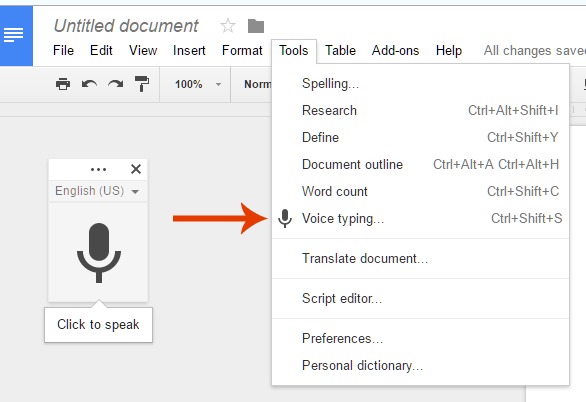 Click the large microphone icon that pops up. When the mic turns orange, start talking.
 Voice Commands
Before your first session, it’s a good idea to review Google’s voice commands.
Here’s a helpful video that explains how to use several common voice commands.
My dictation sample
Here’s the sample text I dictated, exactly as it looks on the Google doc:
I am dictating this blog post using the lapel mic from my digital voice recorder. I simply plugged it into the mic output on my laptop and started talking.
As I get to the end of each sentence, I say the word, period, It inserts a. At the end of the sentence. See I need to work on the editing commands a bit!
I say, “new line” and then I repeat “new line” again and it double spaces between my paragraphs. Usually.
As I’m speaking, there is very little lag time between when the words I dictate display on my Google doc.
I watch the short YouTube video that explains how to use several of the voice commands, and discovered that I can say, “new paragraph,” instead of saying “new line” twice. Makes sense!
Why dictate blog posts?
Studies show that writing and speaking are supported by different parts of the brain.
I am a “written words” person and live largely inside my head. So I’m hoping that by exercising the speaking portion of my brain, I’ll become a more creative thinker. One can always hope!
Dictating blog posts is also helpful for visually impaired people, and for auditory learners.
One of my sons is an auditory learner – he remembers everything he hears (and I mean everything). When he attempts to write or type an essay, it’s a jumbled mess. But he can flawlessly dictate a multi-page essay and nail it on the first draft.
What’s your preference?
- Do you draft blog posts longhand, type or “thumb” them, or dictate them?
- If you dictate or voice record blog posts, why do you prefer that method?
- What software/app do you recommend? Evernote? Dragon? iOS/OS X? Google Docs? Other?
Would love to hear your thoughts.
I never even thought there might be something like this, Well this is something new and I really want to give it a try!
Regards
AK
I have tried to use this system on Firefox and IE but have never tried it with Chrome. Maybe that’s why I have not managed this system. I will give it a new try and see how it works out. Thanks for a very useful article. Can I use this to transcribe my podcasts as well? I will give it a shot and see how it works out.
Thanks For this Post